Zero-Tab Workflow for Business Professionals: Arrange Your B
Learn about Zero-Tab Workflow: Arrange Your Browser and Apps to Eliminate Context Switching in this comprehensive SEO guide.
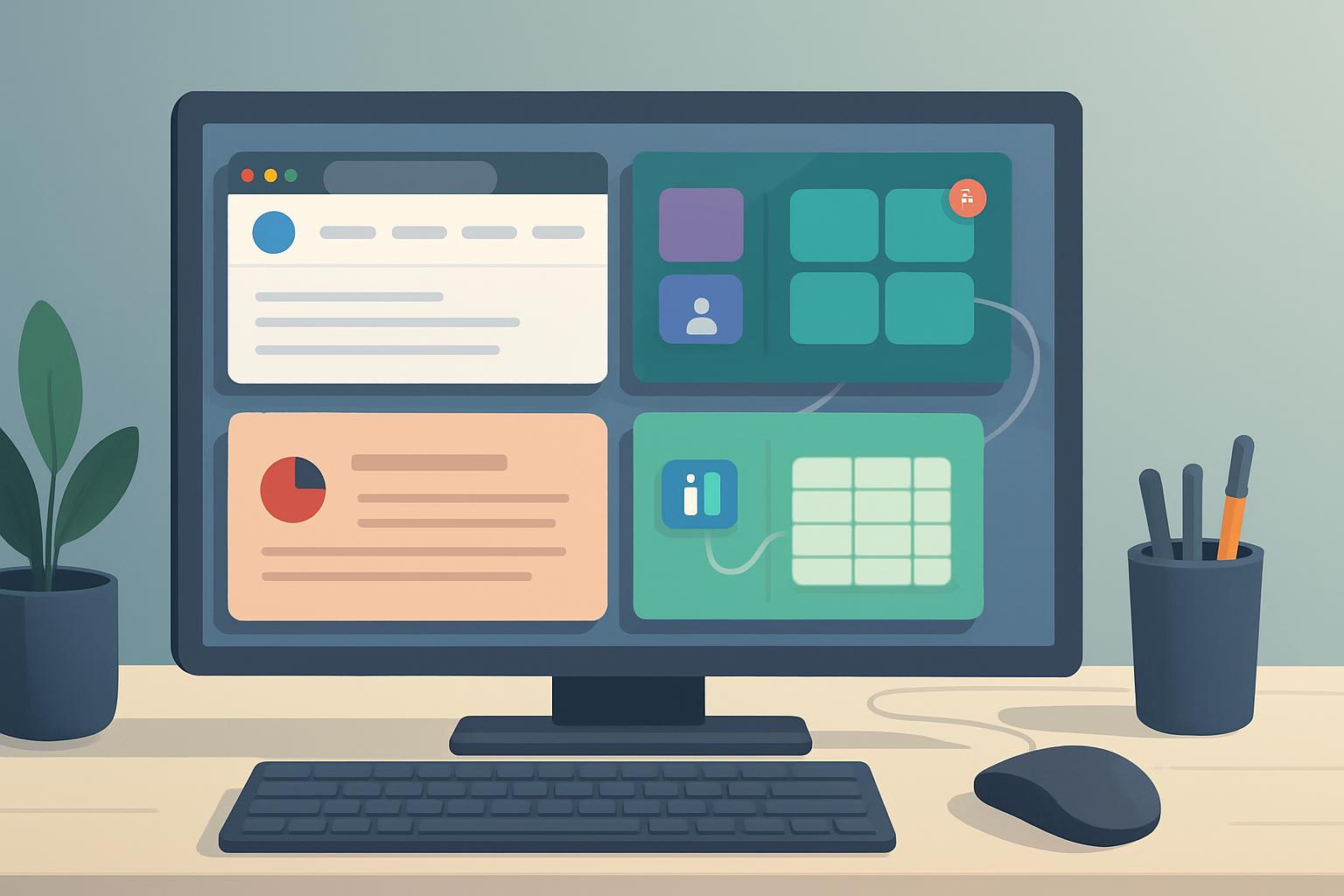
Adopting a zero-tab workflowworkmate.com/blog/zero-tab-workflow-arrange-browser-apps-to-focus" title="Zero-Tab Workflow: Arrange Browser & Apps to Focus">Zero-Tab Workflow reduces context switching by arranging browsers and apps into persistent, task-focused workspaces, improving deep-work time by an estimated 25-40% in typical knowledge-work environments. The approach relies on consistent app placement, window tiling, focused notification policies, and lightweight automation to deliver measurable productivity gains with minimal tooling.
Introduction
Business professionals frequently lose time and cognitive energy switching between browser tabs and multiple applications. A Zero-Tab Workflow is a practical, reproducible strategy that minimizes context switching by eliminating the need to hunt through tabs or open multiple overlapping apps. This article provides step-by-step guidance, tool recommendations, and measurement approaches to implement the workflow in a corporate environment.
Quick Answer: Configure a single-screen or multi-monitor layout with dedicated, persistent work zones, use a limited set of browser-based web apps or pinned app windows, control notifications, and automate routine transitions. Result: fewer interruptions and faster task completion.
Why Zero-Tab Workflow Matters for Business Professionals
Context switching costs are well documented: each switch can incur 15-25 minutes of recovery time for complex tasks according to cognitive research and workplace studies. For executives and knowledge workers, that equates to significant lost capacity across a week. A Zero-Tab Workflow reduces these interruptions by ensuring the right information is visible, organized, and accessible without a search or tab hunt.
- Reduced wasted time: Minimizes time spent locating resources.
- Improved focus: Encourages longer sustained attention blocks.
- Higher reliability: Consistent layouts reduce decision fatigue.
Core Principles of a Zero-Tab Workflow
Implementing this method effectively means adopting a few core principles that guide layout decisions, notification policies, and tool selection.
Principle 1: Focused App Layout
Assign a fixed screen area to each role or task. For example, left screen for communication, center for primary work, and right for reference material. Consistent placement reduces the mental overhead of locating windows.
Principle 2: Contextual Workspaces
Create task-specific workspaces. Each workspace contains only the apps and browser windows relevant to a single workflow—e.g., proposal drafting, sales outreach, or data analysis. Use virtual desktops or persistent window layouts to switch contexts without opening and closing tabs.
Principle 3: Minimal Interruptions
Control notifications so they appear only for high-priority contacts or systems. Batch lower-priority notifications and check them during scheduled intervals. This reduces abrupt attention shifts that fragment work.
Quick Answer: Apply three rules: place, limit, and automate. Place apps predictably, limit items per workspace, and automate routine transitions.
How to Arrange Your Browser and Apps: A Step-by-Step Guide
This section provides a practical rollout plan you can apply in one sitting and refine over weeks.
Step 1: Audit and Categorize Tasks
Do a 30-minute audit to list daily tasks and the apps or tabs used for each. Categorize tasks by cognitive load and frequency:
- High-focus tasks (deep writing, analysis)
- Collaborative tasks (meetings, messaging)
- Reference tasks (dashboards, documentation)
- Administrative tasks (email, approvals)
Map each category to a dedicated workspace so that similar activities are grouped together.
Step 2: Design Persistent Dock or Sidebar
Use a persistent dock, launcher, or sidebar to host the 6-8 core apps you need. Keep browser usage limited to application-style web apps (e.g., webmail, CRM, project tools) that you pin or turn into standalone windows.
- Pin critical web apps as separate windows (or use browser profiles with single-purpose windows).
- Use a launcher for quick access to secondary tools without cluttering the main workspace.
Step 3: Use Window Tiling and Virtual Desktops
Tiling window managers or built-in OS features (Windows Snap Layouts, macOS Split View, Linux tiling) let you place apps side-by-side without overlapping. Assign a virtual desktop to each major workflow so switching contexts is a single keystroke.
- Primary Desktop: Main deliverable (editor, spreadsheet)
- Secondary Desktop: Communication (chat, email)
- Reference Desktop: Monitoring tools and dashboards
Step 4: Configure Notifications and Automations
Set notification rules at the app level and use automation to route messages or create scheduled check-ins. Tools like Do Not Disturb scheduling, focus modes, or notification profiles are essential.
- Allow only priority contacts to break through during deep work.
- Automate status changes (e.g., set messaging status to busy when a focus timer runs).
Quick Answer: Start with a two-desktop model: one for focused work and one for communication, then expand as needed. Use tiling and pinned app windows to keep everything visible without tabs.
Tools and Integrations That Support zero-tab workflows
Choose tools that support persistent windows, keyboard-driven workflows, and automation.
Browser Features to Use
Modern browsers include features that reduce tab dependence:
- Pin tabs or convert them to standalone windows for specific apps.
- Use profiles or containers to separate work contexts.
- Enable site-specific notifications only for critical tools.
Many browsers also support Progressive Web App (PWA) installation, which creates an app-like window for a web service.
App Launchers and Window Managers
Use lightweight launchers and window managers to position apps predictably. Examples include Alfred or Raycast for macOS, PowerToys for Windows (FancyZones), and i3 or Sway on Linux.
Automation and Shortcuts
Automation platforms reduce manual navigation:
- Keyboard macros to switch workspaces and open specific app combinations.
- Scripting tools (AppleScript, AutoHotkey) to restore multi-window layouts.
- Integration platforms (Zapier, Make) to move routine tasks out of active attention.
Sign up for our newsletter
Get the latest updates, product launches, and helpful tips delivered straight to your inbox.
Measuring Productivity Gains
Quantifying improvements helps secure stakeholder buy-in. Use both quantitative and qualitative metrics.
- Baseline time-tracking for one week (use RescueTime or equivalent) to measure active time on tasks vs distractions.
- Set targets for reduced context switching (for example, decrease number of app switches per hour by 30%).
- Collect self-reported focus metrics via daily check-ins or short surveys.
- Track output-based metrics such as tasks completed, meeting preparation time, or decision cycle time.
Industry reports indicate that focused work blocks and reduced interruptions correlate with higher output and lower error rates (see productivity research summaries and workplace studies for detail) [sources: RescueTime, Microsoft WorkLab].
Implementation Roadmap for Teams
Rolling out a Zero-Tab Workflow across a team requires stakeholder alignment and a phased plan.
- Pilot: Identify 3-5 early adopters to test layouts and gather feedback.
- Standardize: Define a minimal recommended setup and create configuration scripts or documentation.
- Train: Run short workshops demonstrating layout setup and notification policies.
- Measure: Use team-level metrics to assess impact and iterate.
Key Takeaways
- Arrange apps and browser windows into predictable, task-specific workspaces to reduce context switching.
- Limit visible apps per workspace and use pinned windows or PWAs instead of many browser tabs.
- Control notifications and automate routine transitions to protect deep-work time.
- Use tiling, virtual desktops, and keyboard shortcuts to make context switches deliberate and fast.
- Measure changes with time-tracking and output metrics to validate benefits.
Frequently Asked Questions
What exactly is a Zero-Tab Workflow and how does it differ from single-tab strategies?
A Zero-Tab Workflow emphasizes eliminating the need to juggle multiple open tabs by replacing tab-heavy habits with pinned app windows, dedicated workspaces, and minimal visible apps. Unlike single-tab strategies that may still rely on a main browser tab, Zero-Tab targets the entire screen and app layout to remove hidden context and window overlap.
Will this approach work on a single laptop screen or is multiple monitors required?
Zero-Tab works on both single and multi-monitor setups. Single-screen users can leverage virtual desktops, split-view, and quick keyboard shortcuts. Multi-monitor setups make persistent zones easier, but the core principles remain the same: limit items per workspace and place them predictably.
How do I handle unexpected interruptions like urgent messages or calendar changes?
Define an interruption policy: allow only priority contacts to break through during focus windows and schedule short check-in periods. Use status automation that sets your messaging apps to busy during deep-work blocks so colleagues understand your availability.
Which tools are best for restoring complex layouts quickly?
Use platform-specific window managers and automation scripts: PowerToys FancyZones on Windows, AppleScript or third-party utilities like Moom on macOS, and i3/Sway scripts on Linux. For cross-platform needs, saved workspace managers and shell scripts can restore app placements.
How long does it take to see productivity gains after adopting Zero-Tab Workflow?
Many professionals report noticeable improvements within a few days to two weeks as they adjust habits. Measurable gains in time-on-task typically appear within one to four weeks when tracking app switches and output metrics.
Are there security or compliance considerations for using PWAs or pinned web apps?
Yes. When converting web apps into PWAs or using separate browser windows, ensure you comply with corporate security policies. Use managed browser profiles, enterprise single sign-on, and adhere to data protection rules to avoid exposing sensitive information.
Can this approach scale for large teams or distributed organizations?
Yes. Scaling requires documented standards, pre-built configurations, and training. Centralized distribution of configuration scripts or managed profiles helps ensure consistency. Regular review cycles keep the approach aligned with evolving workflow needs.
Sources: RescueTime productivity studies; Microsoft WorkLab research; Nielsen Norman Group work on attention and interruptions.
Sign up for our newsletter
Get the latest updates, product launches, and helpful tips delivered straight to your inbox.
Scheduler
Hand your calendar to an assistant that never drops a thread.
Keep reading

Cross-Time-Zone Meetings: Who Actually Pays for Them
Microsoft Research analyzed 20 million meetings and found a third cross time zones. Those meetings are 2.6 times more likely to land at odd hours, and the burden falls on a small, predictable group of people.

The Science of the Meeting Buffer: What Brain Research Says About Back-to-Back Calls
Microsoft wired 14 people with EEG caps to test back-to-back meetings versus meetings with breaks. The stress data was specific enough that Microsoft changed how Outlook works.

Low-Prep External Intros: Proven Scheduling Frameworks Now
Cut Low-Prep External Intros: Scheduling Frameworks That Minimize Prep and Back-and-Forth for Brief Vendor and Prospect Calls. Read the expert analysis